Copy your file into your assistant's saved instructions, or attach the complete file to a project when it's too long. Opening a provider doesn't install anything — you finish setup in your own account.
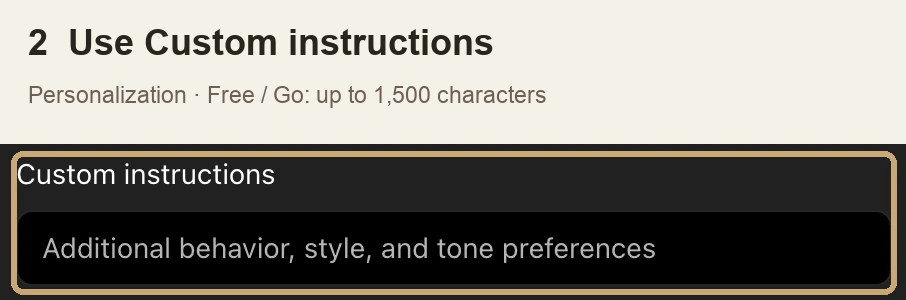
Limit: 1,500 characters, including any existing instructions.
Check the field limit before pasting. Keep any existing instructions.
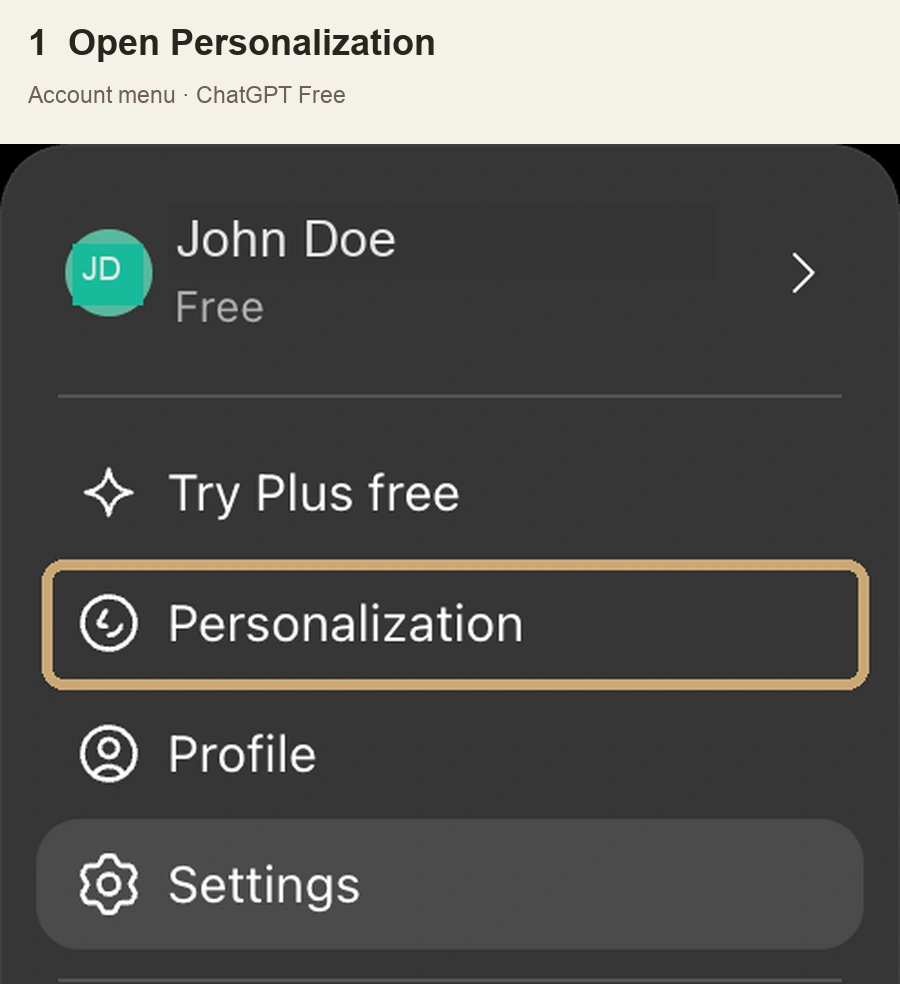
1. Open your account menu, then Personalization.2. Paste into Custom instructions—not Memory—then save. Keep existing instructions within the 1,500-character limit.
Free plan shown. Account details replaced; controls may vary.
If the file is too long: Use the complete file in a Project
This complete file is too long for Custom Instructions. Download it and add it to a Project instead.
New project in sidebar
Add the complete belief file as a project source
Project more menu (•••)
Project settings
Add a short instruction referring to that file
Suggested instruction: “Use the attached belief file as context within its stated scope. Preserve its wording and limitations; flag conflicts or missing source material rather than inventing an answer. Follow the platform's rules.”
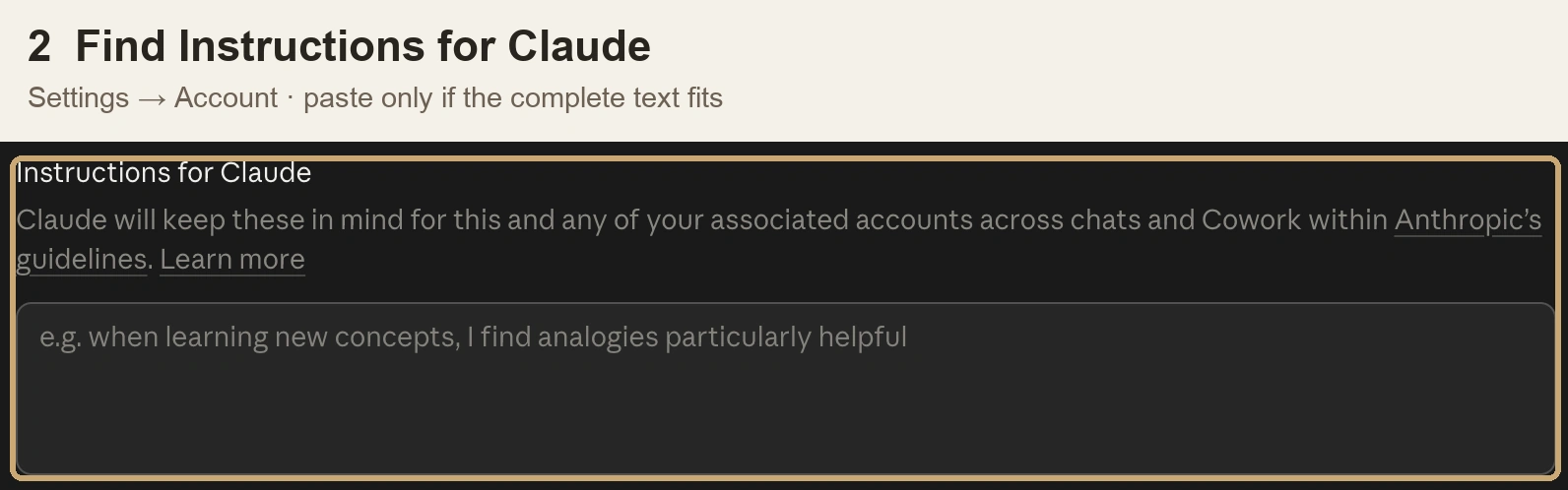
Path: Account menu → Settings → Account → Instructions for Claude
Paste only if the whole file fits. Otherwise use Project files. The button opens Claude; follow the account menu to Settings.
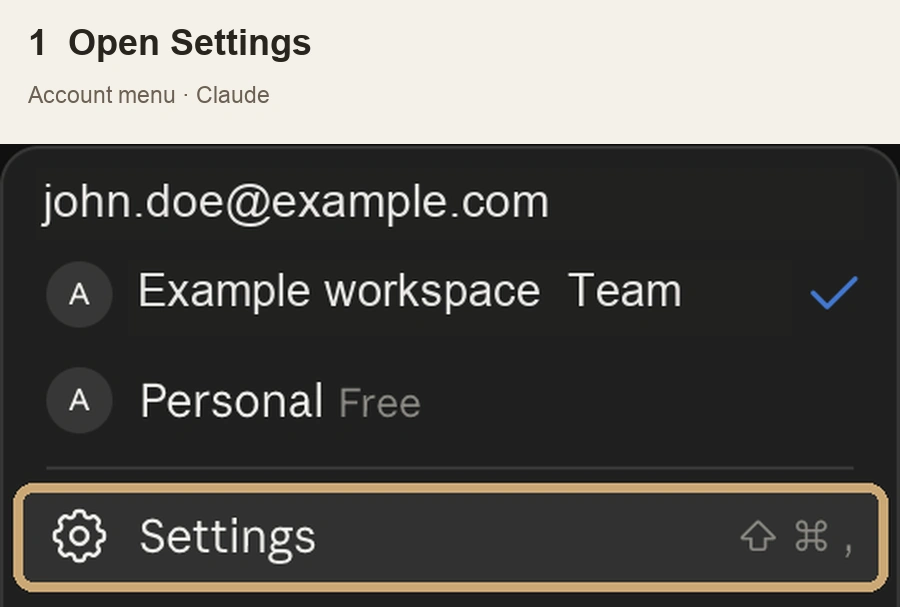
1. Open your account menu, then Settings.2. Choose Account, paste into Instructions for Claude, then save. Keep any existing instructions.
Team workspace shown. Account details replaced; controls may vary.
If the file is too long: Use Project files and project instructions
Projects
+ New Project or an existing private project
+ to add project knowledge/files
Upload complete belief text file
Set project instructions
Save instructions
Suggested instruction: “Use the attached belief file as context within its stated scope. Preserve its wording and limitations; flag conflicts or missing source material. Follow the platform's rules.”
Path: Settings & help → Personal Intelligence → Instructions for Gemini → Add
Personal Google accounts only. Paste only if the whole file fits, then Submit. Otherwise use Gem Knowledge.
If the file is too long: Create a Gem with the complete file in Knowledge
Explore Gems
New Gem
Name and instructions
Knowledge
Add files
Upload files
Save
Suggested instruction: “Use the attached belief file as context within its stated scope. Keep its limitations and flag conflicts or missing sources. Do not use the rewrite-instructions feature on the source text.”
Path: Open Grok · instructions path needs account confirmation
Exact settings steps are not verified. Use the complete file as a chat attachment where supported.
If the file is too long: Attach the complete file in a conversation
Official product page confirms file/PDF analysis. After signing in yourself, use the available attachment control and ask Grok to use the complete file within its stated scope. Exact upload controls, formats, and limits require in-account confirmation.